
When I connect to my home PC from my phone over Remote Desktop, then close the phone app when I’m done, the home PC’s screen gets locked. I wanted my home PC to keep running a task with Codex’s computer use (a feature where the AI operates the mouse, keyboard while looking at the screen), but the lock broke it.
Short answer: before disconnecting, open PowerShell as administrator on the home PC, then run this one line. You disconnect without the screen locking:
tscon $env:SESSIONNAME /dest:console
The phone’s connection drops right away, with the home PC’s screen left on the desktop, unlocked.
The tscon %SESSIONNAME% /dest:console you’ll find online is Command Prompt syntax; typed into PowerShell, it fails. I tripped on that once (explained below).
Environment
- Client: Android phone
- App: Windows App (formerly Microsoft Remote Desktop)
- Route: connected to the home PC via Tailscale
- Host: a Windows 11 Pro PC at home (accepting Remote Desktop connections requires Pro or higher)
- Running on the home PC: Codex computer use
Tailscale only provides the network route; whether the screen locks is down to Remote Desktop (Windows). Without Tailscale, Remote Desktop should behave the same. How I connect from my phone with Tailscale is in another post:
A normal disconnect locks the screen
Disconnecting normally in Windows App leaves the home PC on the lock screen. Running apps don’t quit, but the screen is locked.
For me, that broke the Codex computer use task running on the home PC. Computer use works by looking at the screen, so it can’t continue on a lock screen. Not just computer use: anyone who wants something that relies on what’s on screen (like RPA tools that operate the screen) to keep running after disconnecting will hit the same problem.
tscon moves your session to the PC’s own screen
tscon is a built-in Windows command that reconnects a session (the set of what you see while logged in) somewhere else. The console in /dest:console means the screen physically attached to the PC. In other words, it moves the session you’re using over Remote Desktop to the PC’s own screen. The Remote Desktop connection drops at that moment, but the session stays displayed on the PC’s screen, so it doesn’t lock.
$env:SESSIONNAME is an environment variable holding the current session’s name. While connected over Remote Desktop, it contains the Remote Desktop session’s name.
Steps
- While connected to the home PC from your phone, search for “PowerShell” in the home PC’s Start menu
- Right-click it, then choose “Run as administrator” (works with touch on the phone; no mouse needed. How to right-click is below)
- Run
tscon $env:SESSIONNAME /dest:console
The phone’s connection drops immediately. You won’t see the command’s output on the phone, which is normal.
Right-clicking on a phone
“Run as administrator” is in the right-click menu for PowerShell. When using Windows App by touch, right-click like this:
| Windows App mouse mode | How to right-click |
|---|---|
| Touch mode (operates where your finger touches) | Long-press the item with one finger, then release |
| Mouse pointer mode (a pointer appears on screen) | Tap with two fingers at once |
Microsoft’s Windows App documentation (Android tab) also says a one-finger long press in touch mode, a two-finger tap in mouse pointer mode (also a one-finger long press), acts as a right-click.
%SESSIONNAME% gives “session not found”
What I first used was the Command Prompt syntax. Running it in an administrator PowerShell gave this (my Windows is in Japanese; translated, it says “Session %SESSIONNAME% not found.”):
PS C:\Users\<User>> tscon %SESSIONNAME% /dest:console
Session %SESSIONNAME% not found.
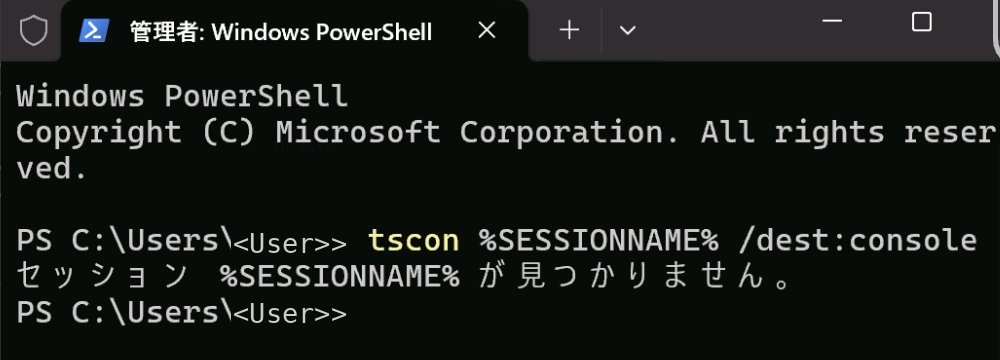
The cause is that Command Prompt, PowerShell write environment variables differently:
| Where you run it | Environment variable syntax |
|---|---|
| Command Prompt (cmd) | %SESSIONNAME% |
| PowerShell | $env:SESSIONNAME |
PowerShell doesn’t treat %SESSIONNAME% as an environment variable, passing the literal text “%SESSIONNAME%” to tscon. No session has that name, hence the error. If an error message shows the variable’s name as is, check where you’re typing the command (Command Prompt vs. PowerShell).
Rewriting it as the PowerShell form tscon $env:SESSIONNAME /dest:console let me disconnect without locking. If you open Command Prompt as administrator, tscon %SESSIONNAME% /dest:console should work as is, but I haven’t tried it in Command Prompt.
If the session name doesn’t work, use its number (not tried)
tscon also accepts the session’s number (ID) instead of its name. Find it with quser:
quser
Take the ID from the row with your user name, then run e.g. tscon 2 /dest:console (replace 2 with your ID). $env:SESSIONNAME worked for me, so I haven’t tried this.
Things to watch out for
- Anyone in front of the PC can use it. An unlocked desktop stays on the PC’s screen, so be careful at a home with family, or on a work PC
- tscon needs privileges for things like operating other people’s sessions. I ran it from PowerShell opened as administrator
If it locks after a while, check Windows settings first
tscon only prevents the lock at disconnect. Sleep, along with locking after a period of inactivity, are separate settings; if they’re on, the PC will still sleep or lock after a while, even after a tscon disconnect. Review Windows settings first in that case. On Windows 11 they’re mainly here (item names can vary slightly by version):
- Settings → System → Power (laptops: “Power & battery”) → Screen and sleep: time until the screen turns off, until sleep
- Settings → Accounts → Sign-in options: whether to require sign-in again after you’ve been away
- Settings → Personalization → Lock screen → Screen saver: wait time, plus “On resume, display logon screen”
On work PCs these may be set by an administrator, not changeable. My work PC is like that; there, as an exceptional measure, I made a PowerShell tool that presses a key periodically to prevent locking. It’s in this post:
Summary
To end Remote Desktop without locking the home PC’s screen, run this one line in an administrator PowerShell on the home PC:
tscon $env:SESSIONNAME /dest:console
If you get “session %SESSIONNAME% not found”, you typed the Command Prompt form into PowerShell. Change it to $env:SESSIONNAME.

コメント