
You installed Claude Code or Codex on Windows, but when you try to start it, nothing runs. You get this instead:
claude : The term 'claude' is not recognized as the name of a cmdlet, function, script file, …
I use Claude Code plus Codex on Windows every day. To see exactly what happens right after installing, I created a fresh Windows user and installed both from scratch. Short answer: it almost always comes down to one of these three:
- Mixed-up commands: you typed the PowerShell command into CMD, or the other way round
- Claude Code’s installer doesn’t add itself to PATH: it only prints a one-line English note saying the folder “is not in your PATH”
- You’re still in the window you installed from: even once PATH is set, only newly opened windows see it (Codex too)
My Windows is in Japanese, so the screenshots show Japanese messages. I give the English wording of each message in the text.
Test environment
- Windows 11 Pro 25H2 (OS build 26200.9711)
- Windows PowerShell 5.1
- A new local user created for the test (not an administrator)
- Claude Code 2.1.316, Codex CLI 0.166.0 (both installed with the official commands as of November 2026)
Installer steps, messages can change between versions. If something doesn’t match, check the official docs as well.
First: did you mix up the PowerShell, CMD commands?
Claude Code has separate official install commands for PowerShell, CMD (Command Prompt), Mac/Linux:
| Where you type it | Claude Code install command |
|---|---|
| PowerShell (prompt starts with PS C:\…>) | irm https://claude.ai/install.ps1 | iex |
| CMD (prompt starts with C:\…>) | curl -fsSL https://claude.ai/install.cmd -o install.cmd && install.cmd && del install.cmd |
| Mac / Linux / WSL | curl -fsSL https://claude.ai/install.sh | bash |
Mix them up and you get one of these errors. Each one just stops; nothing gets installed.
PowerShell command typed into CMD
'irm' is not recognized as an internal …

CMD command typed into PowerShell
The token '&&' is not a valid statement separator in this version.

Mac/Linux command typed into PowerShell
bash : The term 'bash' is not recognized as the name of a cmdlet, …

Telling them apart is easy: if the line starts with PS, it’s PowerShell; if not, it’s CMD.
Claude Code: the install succeeds, yet “not recognized”
With the right command in PowerShell, the installation itself succeeds.

But typing claude --version right after gives “not recognized”. Reopening PowerShell didn’t help either.

The reason is in the installer’s “Setup notes”:
Native installation exists but C:\Users\<User>\.local\bin is not in your PATH.
Claude Code itself (claude.exe) went into C:\Users\<User>\.local\bin, but that folder isn’t on PATH (the list of folders Windows searches for commands). The installer only warns you; adding it to PATH is up to you. It’s a single line, so it’s easy to miss when you only see “Installation complete!”.
Add it to PATH (the official steps)
In PowerShell, check that the file exists, then whether its folder is on PATH:
Test-Path "$env:USERPROFILE\.local\bin\claude.exe"
$env:PATH -split ';' | Select-String '\.local\\bin'
If line 1 prints True while line 2 prints nothing, the folder isn’t on PATH. These two lines add it to your user PATH (no admin rights needed):
$currentPath = [Environment]::GetEnvironmentVariable('PATH', 'User')
[Environment]::SetEnvironmentVariable('PATH', "$currentPath;$env:USERPROFILE\.local\bin", 'User')

The catch: in the same window, it still says “not recognized” right after adding it. Closing PowerShell, then opening a new one, made it work.

To add it through the settings screen instead, as the Setup notes say: System Properties → Environment Variables → edit “Path” under user variables → “New” → add %USERPROFILE%\.local\bin. Reopen PowerShell afterwards here too.
The official docs also note that if you use the terminal inside an editor such as VS Code, you need to restart the whole editor for the PATH change to apply.
Codex: PATH is set automatically, but not in the same window
The official Windows install command for Codex:
powershell -ExecutionPolicy ByPass -c "irm https://chatgpt.com/codex/install.ps1 | iex"
Unlike Claude Code, the Codex installer added itself to PATH automatically. It even says “PATH updated for future PowerShell sessions.”
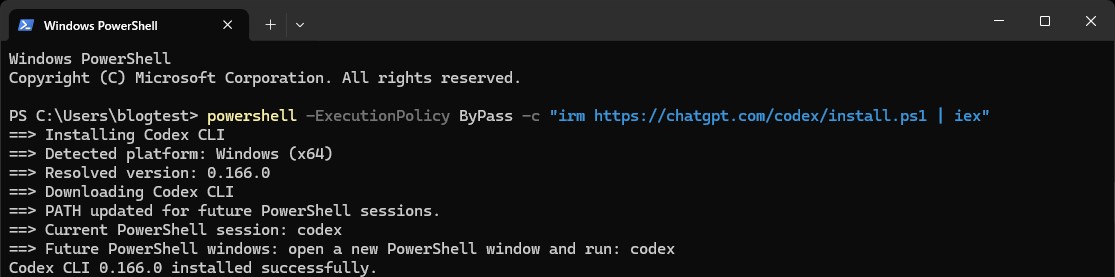
But as “future” suggests, codex --version in the window I installed from still said “not recognized”. A newly opened PowerShell worked.


As a non-admin user, sandbox setup fails
The first time you start Codex, it asks to set up a “sandbox” that restricts file, network access. The default “Set up default sandbox” needs admin rights; choosing it as a non-admin user showed:
Couldn't set up your sandbox with Administrator permissions

Choosing “Use Codex with non-admin sandbox” (no admin rights required) let me start right away. As the screen says, though, it protects less than the default sandbox. On a work PC without admin rights, follow your IT department’s rules on which one to use.
Installed via npm? Watch out for the execution policy
Codex can also be installed with npm (npm install -g @openai/codex). That creates three files in C:\Users\<User>\AppData\Roaming\npm: codex.ps1, codex.cmd, codex. To see which one runs:
Get-Command codex -All | Format-Table CommandType, Name, Source
On my PC, codex.ps1 (a PowerShell script) came first. So typing codex in PowerShell runs that script. Being a script, it’s blocked if PowerShell’s execution policy is still Windows’ default, “Restricted”.
My PC’s execution policy has been changed, so I set Restricted for one PowerShell window only to test it (with -Scope Process, closing the window restores it):
Set-ExecutionPolicy Restricted -Scope Process -Force
codex --version
codex.cmd --version

codex : File C:\Users\<User>\AppData\Roaming\npm\codex.ps1 cannot be loaded because running scripts is disabled on this system.
    + CategoryInfo          : SecurityError: (:) [], PSSecurityException
    + FullyQualifiedErrorId : UnauthorizedAccess
codex stopped with this error; typing codex.cmd instead worked. Your options:
- Type codex.cmd: no settings to change
- Change the execution policy: for your user only,
Set-ExecutionPolicy RemoteSigned -Scope CurrentUser. I explain what the execution policy means in my post on the UnauthorizedAccess error (in Japanese) - Reinstall with the official command instead of npm: it runs with
-ExecutionPolicy ByPass, then installs a binary rather than a script, so you never hit this
Where npm itself ships an npm.ps1, the npm command can stop with the same error (Claude Code’s official troubleshooting mentions this). My Node.js (v20.19.6) had no npm.ps1, so npm worked fine. If npm gives the same error, typing npm.cmd works.
Summary
- A prompt starting with PS means PowerShell; without it, CMD. Don’t mix up the install commands
- Claude Code doesn’t add itself to PATH. Look for “is not in your PATH” in the Setup notes, then add it yourself
- After changing PATH or installing, reopen PowerShell (Codex too)
- Codex installed via npm can be blocked by the execution policy. Type codex.cmd, or change the policy
Related posts
- Check permissions when PowerShell scripts fail with “UnauthorizedAccess” (in Japanese)
- Fixing “input is too long” when even /compact fails in Claude Code
- Claude Code stopped by reasoning_extraction: cause, fix

コメント