
I previously wrote about using ChatGPT Desktop / Codex through Amazon Bedrock Runtime from Windows on EC2. This is the Claude version: I set up Claude Desktop on Windows Server 2025 on EC2 to run through Amazon Bedrock. Instead of signing in to an Anthropic account, it uses AWS authentication, with Bedrock as the model provider.
Short answer: enable Developer Mode, set “third-party inference” to Bedrock with a cloud vendor profile, then hand it the EC2 IAM role’s credentials through a credential_process profile. Press “Apply changes”, restart, and it works.
Environment, architecture
- Windows Server 2025 on AWS EC2 (Tokyo region)
- Claude Desktop 2.7032.0.0
- An IAM role that can call Bedrock attached to the EC2 instance
- Model:
jp.anthropic.claude-opus-5-5(Claude Opus 5.5)
The setup looks like this:
Claude Desktop (third-party inference = Bedrock)
    ↓
AWS profile claude-ec2
    ↓
Temporary credentials of the EC2 IAM role
    ↓
Amazon Bedrock Runtime (ap-northeast-1)
    ↓
jp.anthropic.claude-opus-5-5
Claude Desktop settings
First, note that preparing AWS settings (.aws/config etc.) alone doesn’t change where Claude Desktop’s chat connects. You have to set “third-party inference” to Bedrock inside Claude Desktop.
My Windows is in Japanese, so the screenshots show Japanese UI. I translated the menu labels; the English wording may differ slightly.
Enable Developer Mode
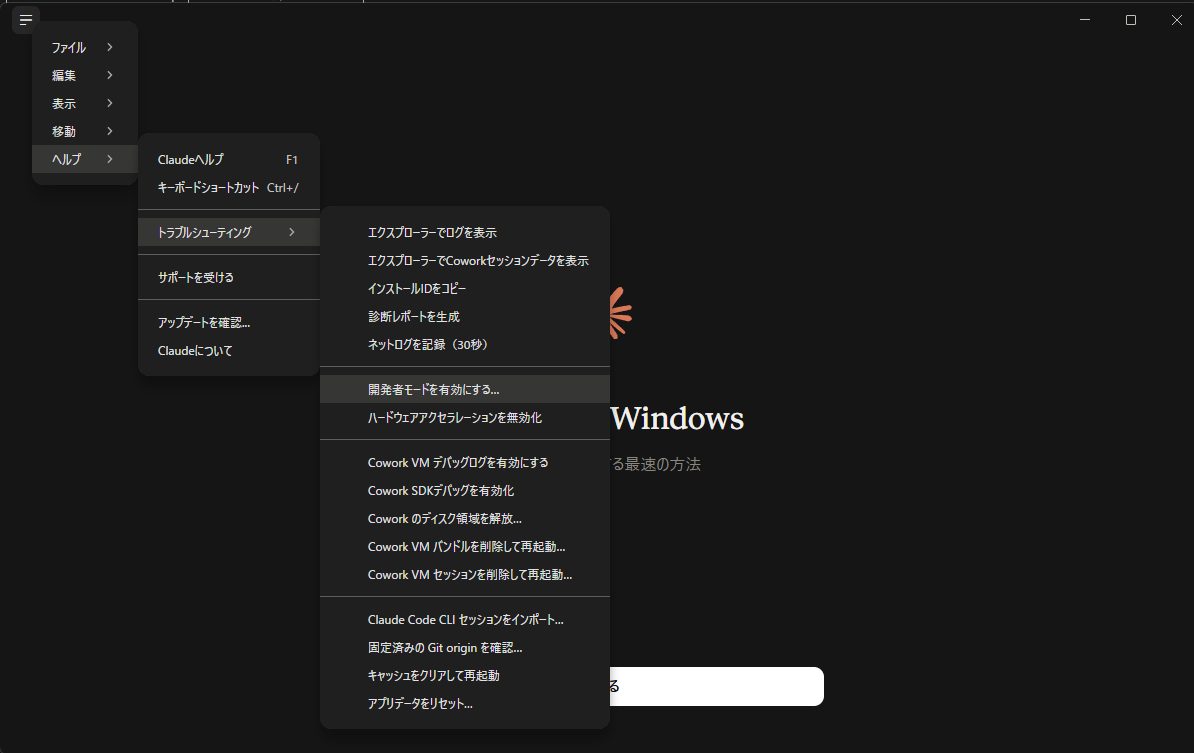
The third-party inference settings can’t be opened from the normal menus at first. While still on the “Get started” screen after installing, choose Help → Troubleshooting → Enable Developer Mode from the menu at the top left.
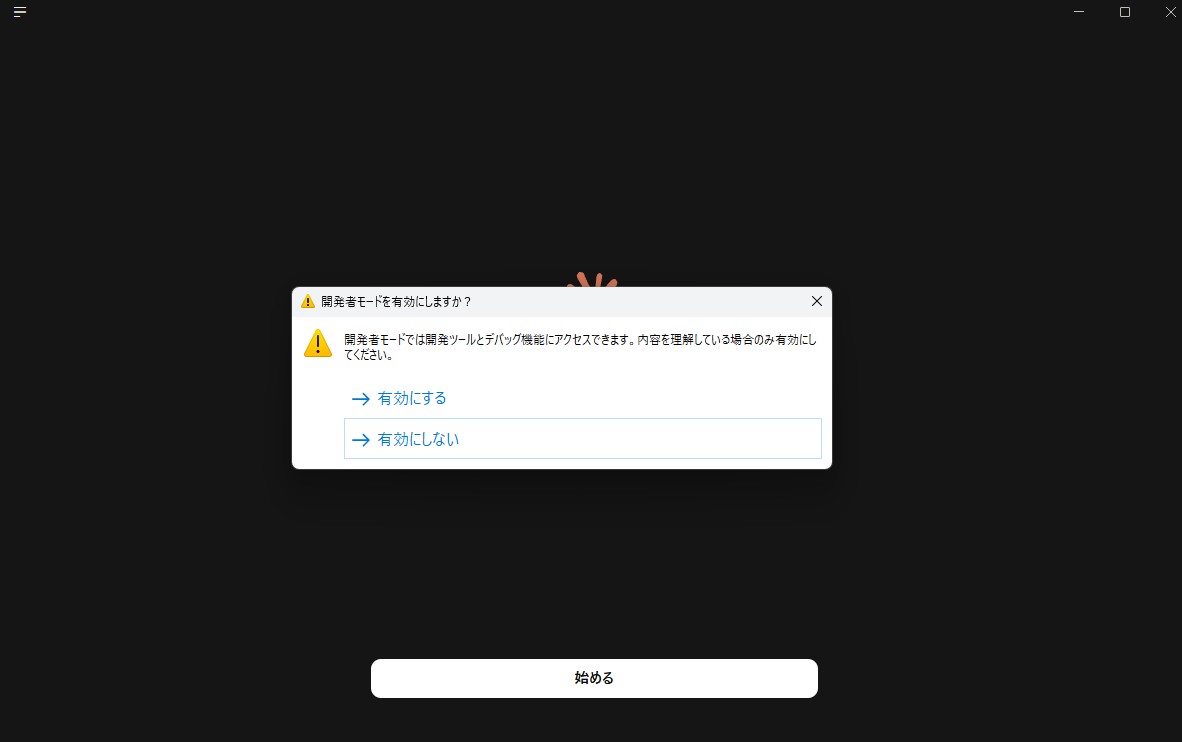
A confirmation dialog appears; choose “Enable”.
Configure third-party inference
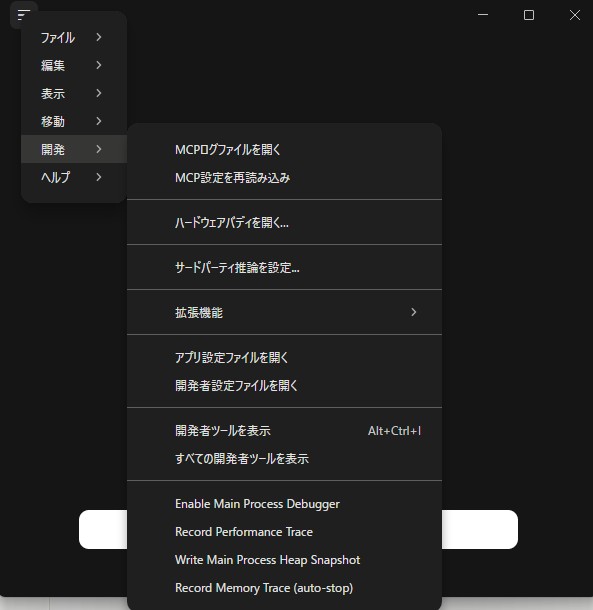
With Developer Mode on, a “Developer” item appears in the top-left menu. Open “Configure third-party inference...” from it.
Right after opening, the destination is set to “Gateway”.

Under “Connection”, change the destination to Bedrock, then choose cloud vendor profile as the credential type. I set the region plus the Bedrock base URL to the Tokyo region.

Next, fill in the AWS profile name, the AWS config directory, the AWS CLI path.

| Field | Value |
|---|---|
| AWS profile name | claude-ec2 |
| AWS config directory | C:\Users\<User>\.aws-claude |
| AWS CLI path | C:\Users\<User>\AppData\Local\Programs\Amazon\AWSCLIV2\aws.exe |
For the AWS config directory I used a dedicated .aws-claude instead of the default %USERPROFILE%\.aws. That keeps Claude Desktop’s settings separate without touching the shared AWS config (such as the [default] profile other tools use). If the default .aws is fine for you, you can skip this.
In the model list I added jp.anthropic.claude-opus-5-5. The first entry becomes the default model.
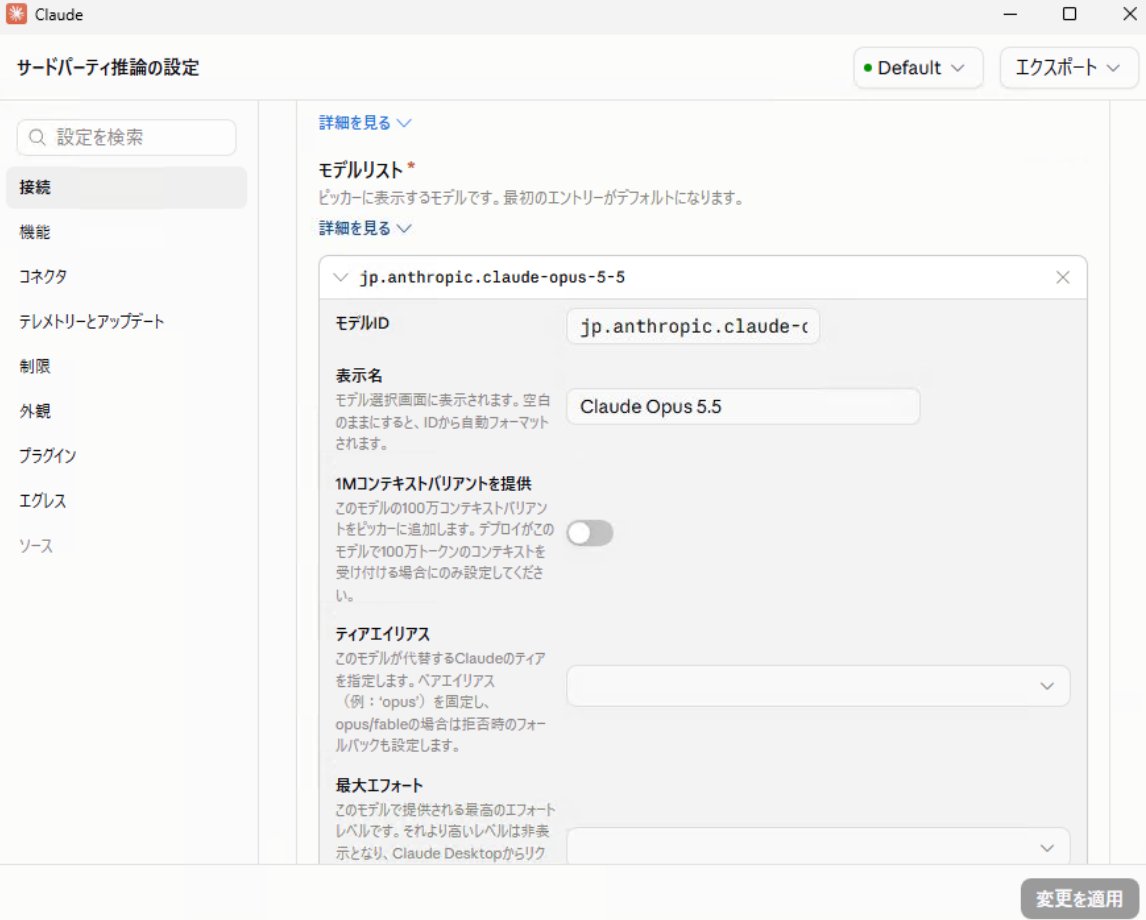
When done, press “Apply changes” at the bottom right, then restart Claude Desktop. Saving alone doesn’t take effect (more below).
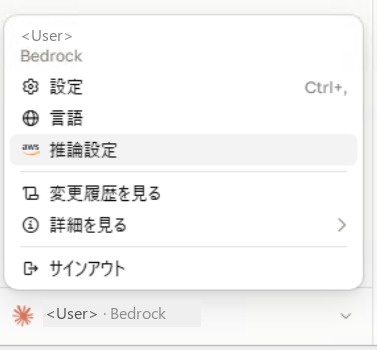
After this, an “Inference settings” item appears in the account menu at the bottom left. Open it there for later changes.
Preparing the AWS profile (using the EC2 IAM role)
In my case Bedrock had to be used with the EC2 IAM role. But as shown above, Claude Desktop won’t work without some AWS profile (config). So I created a profile that fetches the EC2 IAM role’s credentials, using credential_process plus a PowerShell script.
By comparison, Codex last time could use the EC2 IAM role directly, just by setting the model provider etc. in config.toml. Claude Desktop only accepts credentials through a profile, hence this extra step.
Write this profile into config in the dedicated directory. Put an empty credentials file in the same directory too.
[profile claude-ec2]
region = ap-northeast-1
credential_process = powershell.exe -NoProfile -ExecutionPolicy Bypass -File C:\Users\<User>\.aws-claude\imds-creds-direct.ps1

credential_process makes the AWS CLI run the given command whenever it needs credentials, using the JSON on its standard output as the credentials. Temporary credentials expire, but when they do, the script is called again to fetch fresh ones. The script it calls, imds-creds-direct.ps1:
$ErrorActionPreference = 'Stop'
# Bypass proxies only inside this short-lived credential process.
[System.Net.WebRequest]::DefaultWebProxy = New-Object System.Net.WebProxy
$base = 'http://169.254.169.254/latest'
$token = Invoke-RestMethod -Method Put -Uri "$base/api/token" -Headers @{'X-aws-ec2-metadata-token-ttl-seconds'='60'} -TimeoutSec 10
$headers = @{'X-aws-ec2-metadata-token'=$token}
$role = (Invoke-RestMethod -Uri "$base/meta-data/iam/security-credentials/" -Headers $headers -TimeoutSec 10).Trim()
$c = Invoke-RestMethod -Uri "$base/meta-data/iam/security-credentials/$role" -Headers $headers -TimeoutSec 10
if ($c.Code -ne 'Success' -or !$c.AccessKeyId -or !$c.SecretAccessKey -or !$c.Token) { throw 'IMDS did not return valid credentials.' }
@{Version=1;AccessKeyId=$c.AccessKeyId;SecretAccessKey=$c.SecretAccessKey;SessionToken=$c.Token;Expiration=$c.Expiration} | ConvertTo-Json -Compress
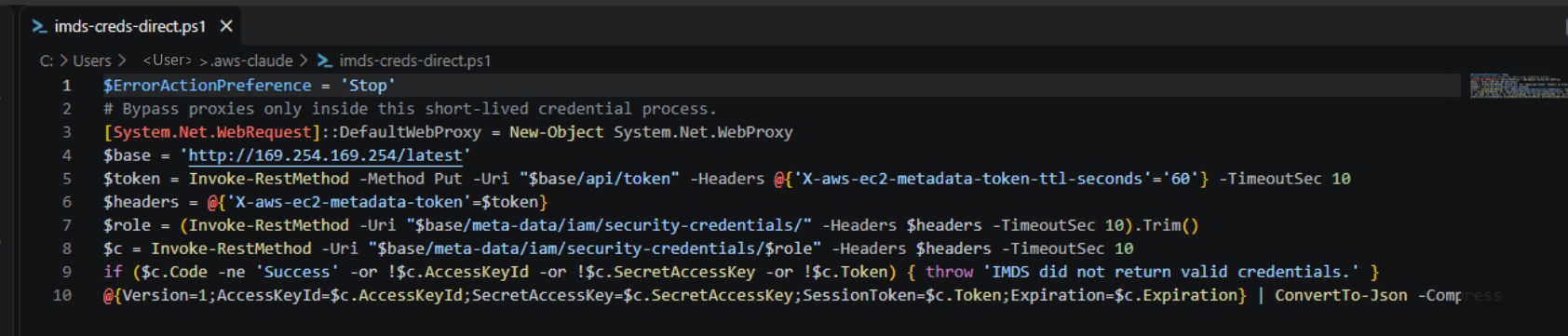
It gets an IMDSv2 (Instance Metadata Service) token, fetches the temporary credentials of the IAM role attached to the EC2 instance, then returns them as JSON in the format credential_process expects.
Line 3 is for environments where the OS has a proxy configured. Windows PowerShell’s Invoke-RestMethod follows the OS proxy settings by default, so even requests to the metadata address (169.254.169.254) can end up at the proxy. Disabling the proxy only inside this script makes sure it reads this EC2 instance’s own metadata. The OS-wide proxy settings are untouched. Without a proxy, the line does no harm.
If you run this script by hand, what it prints are the credentials themselves, so handle the output with care.
Checking the connection
If you start with Claude Desktop’s connection test, a failure won’t tell you what’s wrong. Checking in this order is more reliable:
- Run STS
GetCallerIdentitywith the profile, confirming it’s the IAM role attached to the EC2 instance - Check that a Bedrock
Conversecall works from the AWS CLI - Finally press “Test connection” in Claude Desktop’s inference settings
For step 1, in PowerShell you can point to the dedicated directory like this:
$env:AWS_CONFIG_FILE = "$env:USERPROFILE\.aws-claude\config"
$env:AWS_SHARED_CREDENTIALS_FILE = "$env:USERPROFILE\.aws-claude\credentials"
aws sts get-caller-identity --profile claude-ec2
If the role shown isn’t the one you expect, the later steps will fail too. Even when Bedrock returns AccessDenied, check here “which role am I running as” before adding IAM permissions.
Once step 3 passes, just chat in Claude Desktop as usual. In my environment, the connection test succeeded in about 6.3 seconds with a 1-token response.
Gotcha: the connection test fails with “CLI exited”
The first time I pressed the connection test, it failed with “CLI exited”. At that point I had only saved the settings, without “Apply changes” plus a restart. After applying, restarting, the retest succeeded.
I was also fixing authentication settings at the same time, though, so I can’t say for sure that skipping apply/restart was the only cause. If you see the same error, check both: whether you applied then restarted, plus whether steps 1, 2 above pass.
Notes
- No need to write access keys or tokens into config files.
credential_processrefetches temporary credentials as they expire - The script relies on EC2 metadata, so it won’t work as is outside EC2
- If adding a new model or region gets refused, check the role with STS first. If an IAM change is really needed, pin down the exact permission, then add it with least privilege
Summary
- To use Claude Desktop through Bedrock, enable Developer Mode, then switch to Bedrock in Developer → Configure third-party inference
- Credential type: cloud vendor profile, with the AWS profile name, config directory, AWS CLI path
- Claude Desktop needs an AWS profile, so to use the EC2 IAM role, pass it as a profile via
credential_process - After configuring, saving isn’t enough: press “Apply changes”, then restart
- If it doesn’t work, narrow it down in order: STS → CLI Converse → Claude Desktop connection test


コメント